
Open MacroCodex on your iPhone
If you are on your iPhone, tap the button above. If you are on another device, scan the QR code.
MACROCODEX FOR IPHONE
This is a one-time setup. Add MacroCodex from Safari and it will open from your home screen like an app—not as a browser tab.
THREE SIMPLE STEPS
There is no App Store download. These steps put MacroCodex on your home screen, ready to open whenever you need it.
If you are on your iPhone, tap the button above. If you are on another device, scan the QR code.
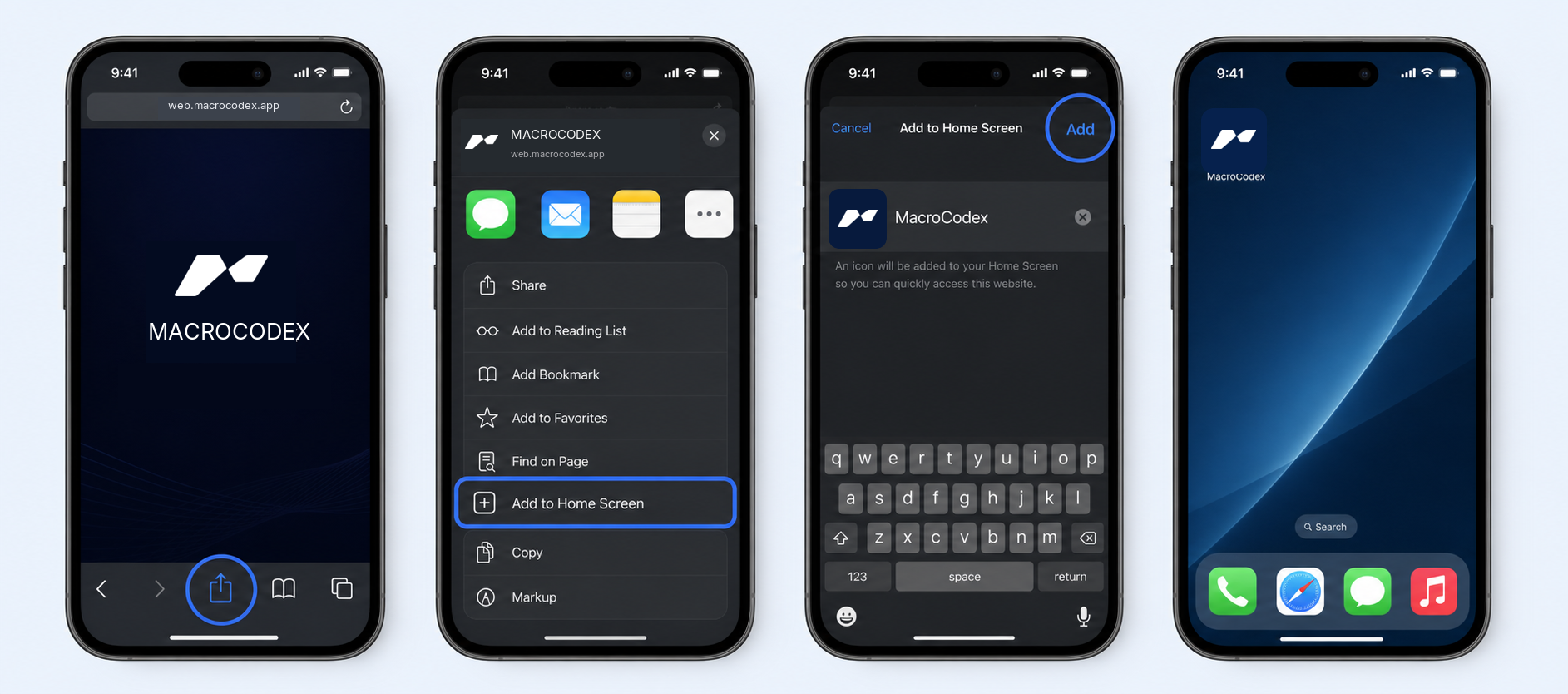
The final install step requires Safari. In Safari, tap the Share button in the bottom toolbar.
Choose “Add to Home Screen,” then tap Add. Open MacroCodex from its new home-screen icon from then on.
Don’t see “Add to Home Screen”? Make sure the page is open in Safari—not Chrome or an in-app browser—then open the Share sheet again.